Make your card
In Clip Cards, from your CV or LinkedIn PDF, from a contact, or from scratch. It takes about a minute.
Apple Wallet business card
Your card as a pass in Apple Wallet: your name, role and a QR code. Whoever scans it sees your card and saves your contact, with no app to install.
In Clip Cards, from your CV or LinkedIn PDF, from a contact, or from scratch. It takes about a minute.
Tap Add to Apple Wallet.
Wallet shows your pass. Tap Add.
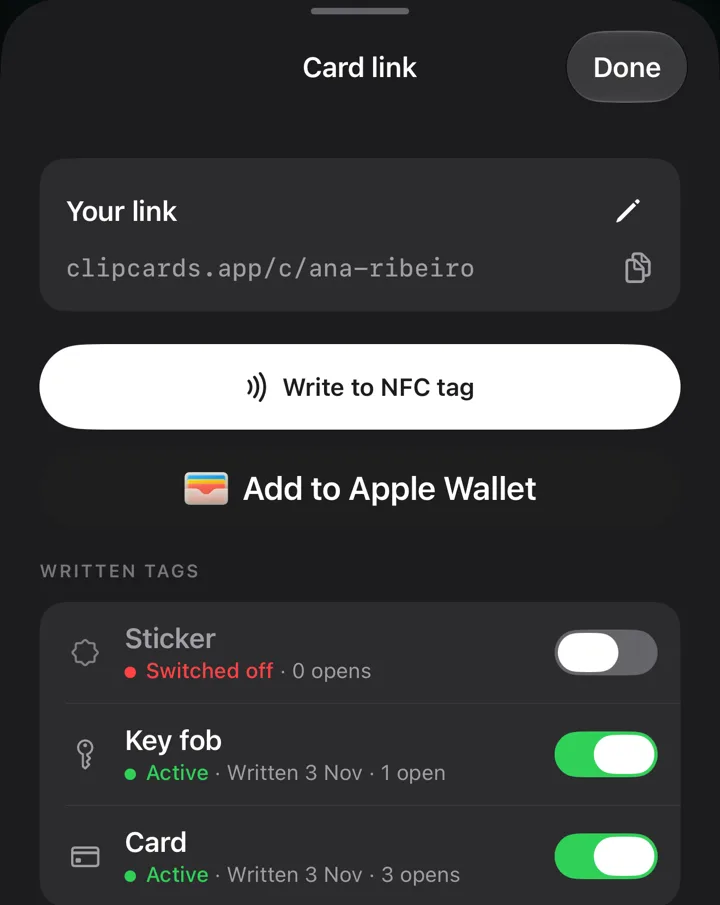
Change your job title, phone, colour or link in the app, and the pass in Wallet changes too, on each device you added it to. You never add it again. Delete the card and the pass greys out and loses its QR, so an old pass never points at a card that is gone.
They point their camera at the QR. On an iPhone with iOS 26 your card opens in an App Clip; on other phones it opens in the browser. They see your photo, role and links, LinkedIn first, and one button saves you to their contacts, in their language: English, Spanish or Portuguese. They need no app and no account.
Clip Cards makes a pass for Apple Wallet only, not for Google Wallet. Android phones scan your QR with the camera and open your card in the browser. The app for making your card is iPhone only.
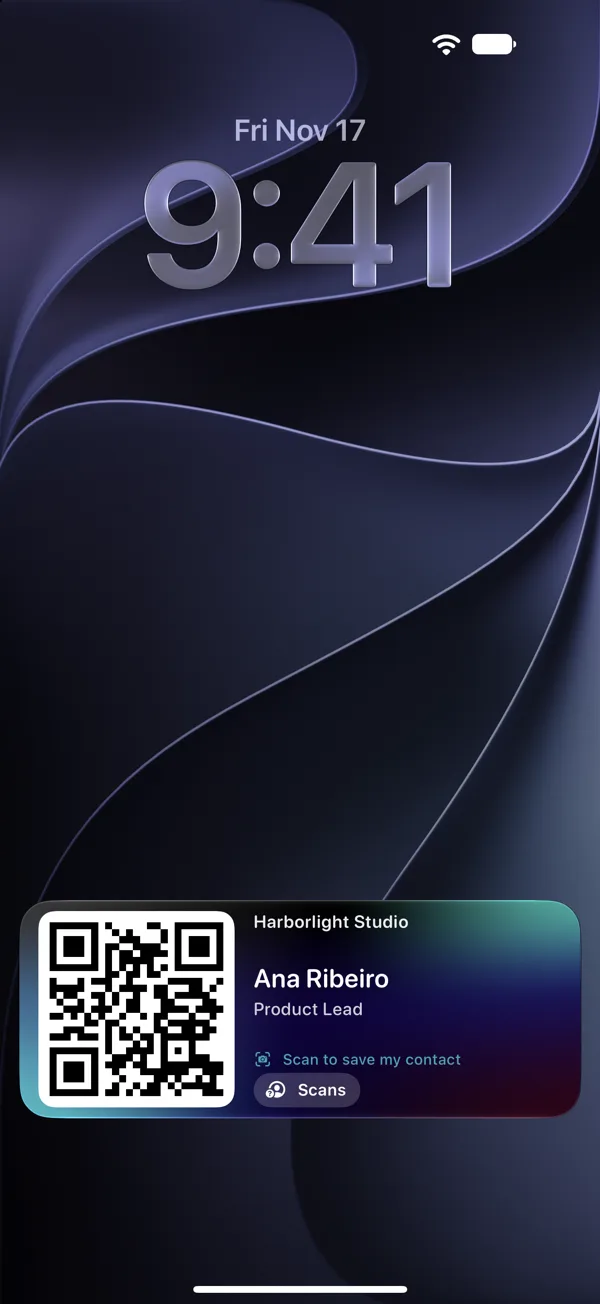
Wallet is one of several. During an event, event mode keeps your QR on the Lock Screen and in the Dynamic Island for up to 8 hours. It is also in a widget, on your Apple Watch, and Siri shows it when you ask. With an NFC card, hold it to the top of an iPhone and your card opens. How the NFC card works
Free on the App Store, for iPhone with iOS 26. Sign in with Apple and make your card.