Digital business card for iPhone
LinkedIn gets you connected.
Clip Cards remembers why
- Tap. Saved. Any phone. No app, no account.
- Not everyone's on LinkedIn. WhatsApp, email, your number. One card, every channel.
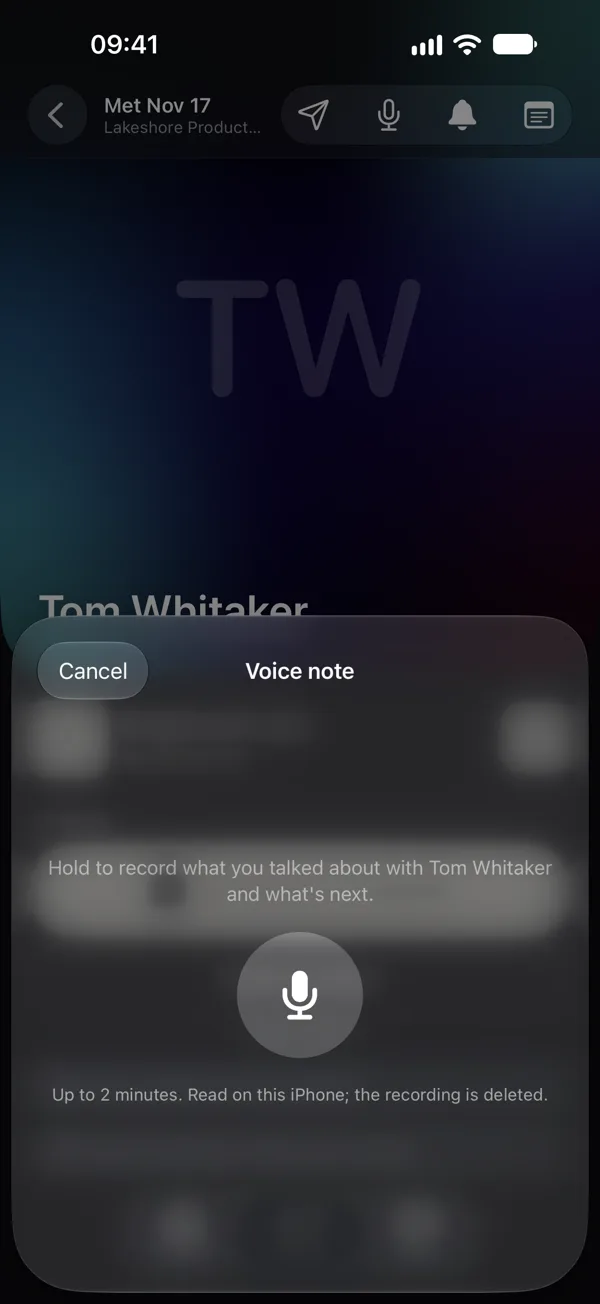
- Talk, don't type. A voice note on the way out.
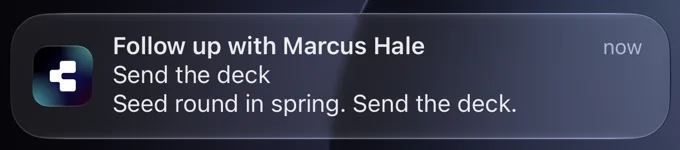
- Reminders that say why. “Send Tomás the API docs.” From version 1.6.
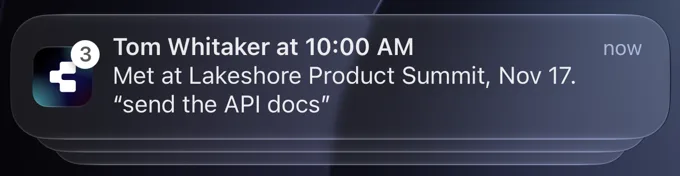
- Walk in remembering. Fifteen minutes before you meet, who they are and what you promised. From version 1.6.
Free · No app for them · Open to everyone
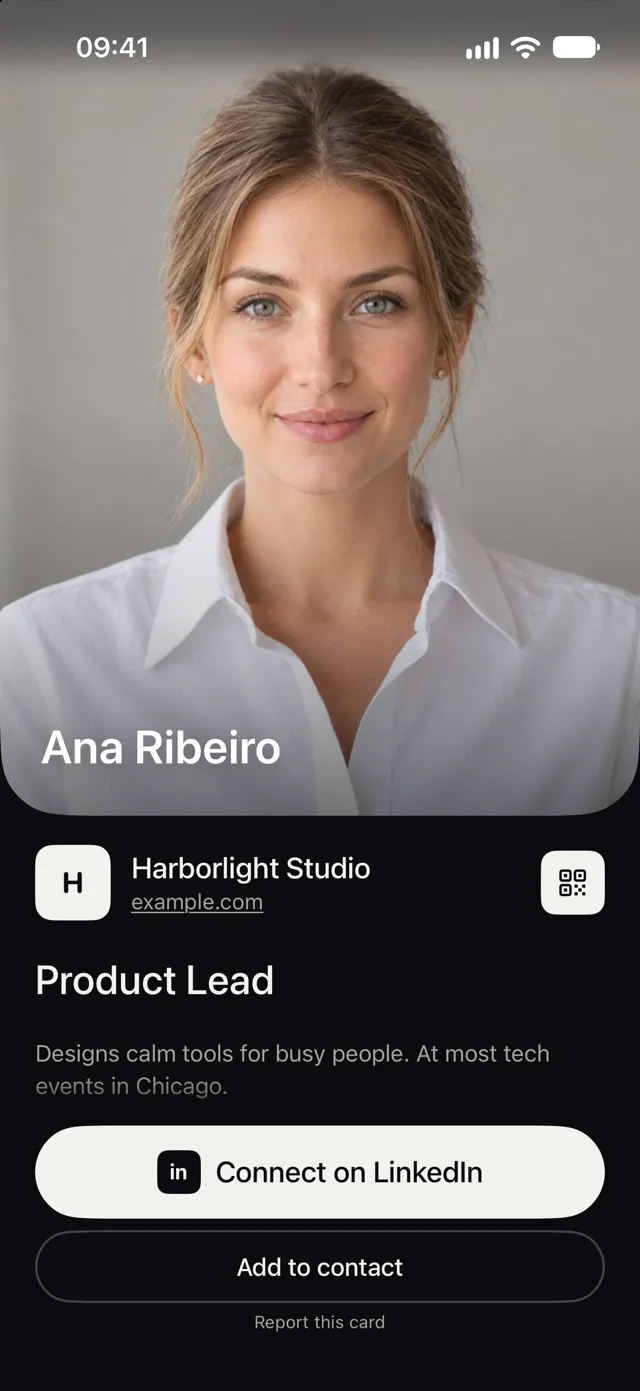
01 Tap
One card, every phoneno app, no account
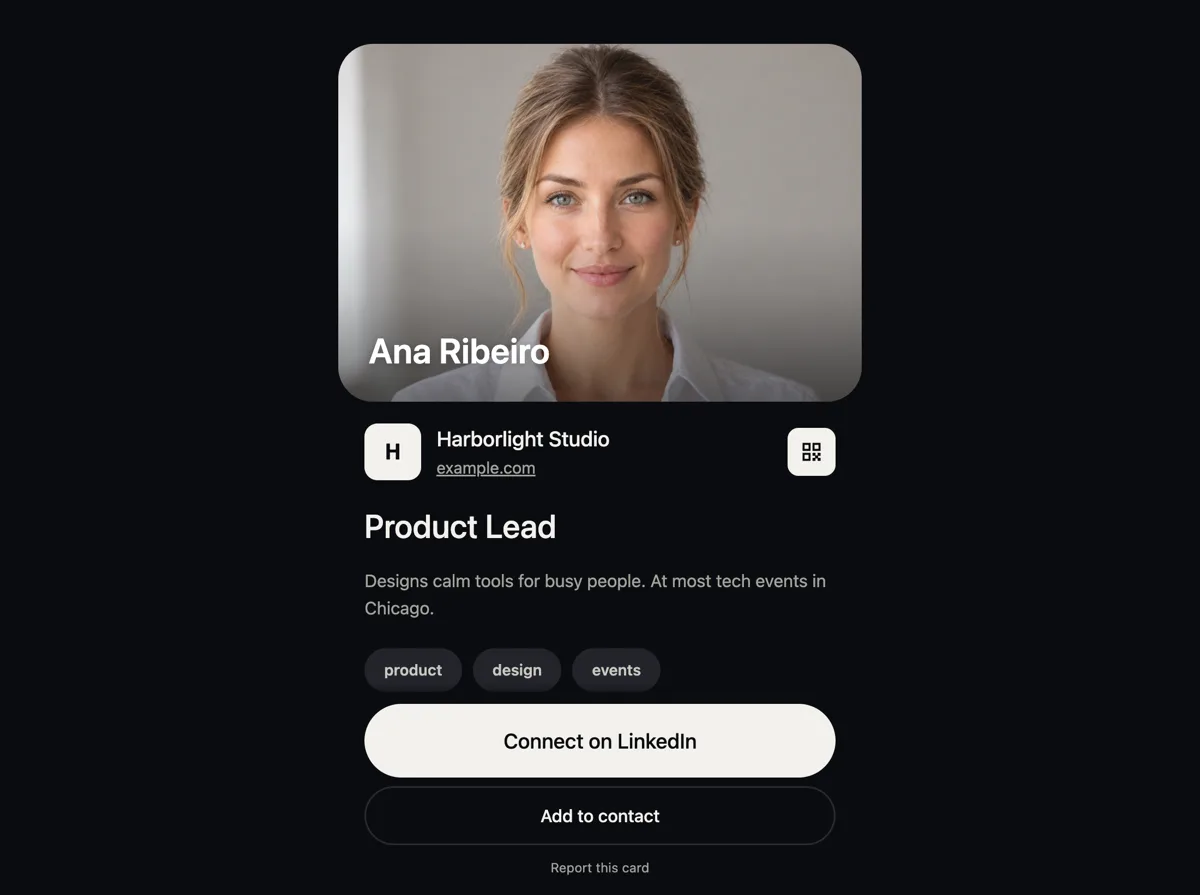
Your card opens in an App Clip on iOS 26, with your photo, role and links, LinkedIn first. Older iPhones, Android phones and computers get the same card in the browser. In English, Spanish or Portuguese, whichever their phone speaks.
- Tap. Hold the card to the top of an iPhone, or scan its QR.
- See. Your photo, role and links open at once.
- Save. One button adds you to their contacts.
02 People
Everyone you metand what comes next
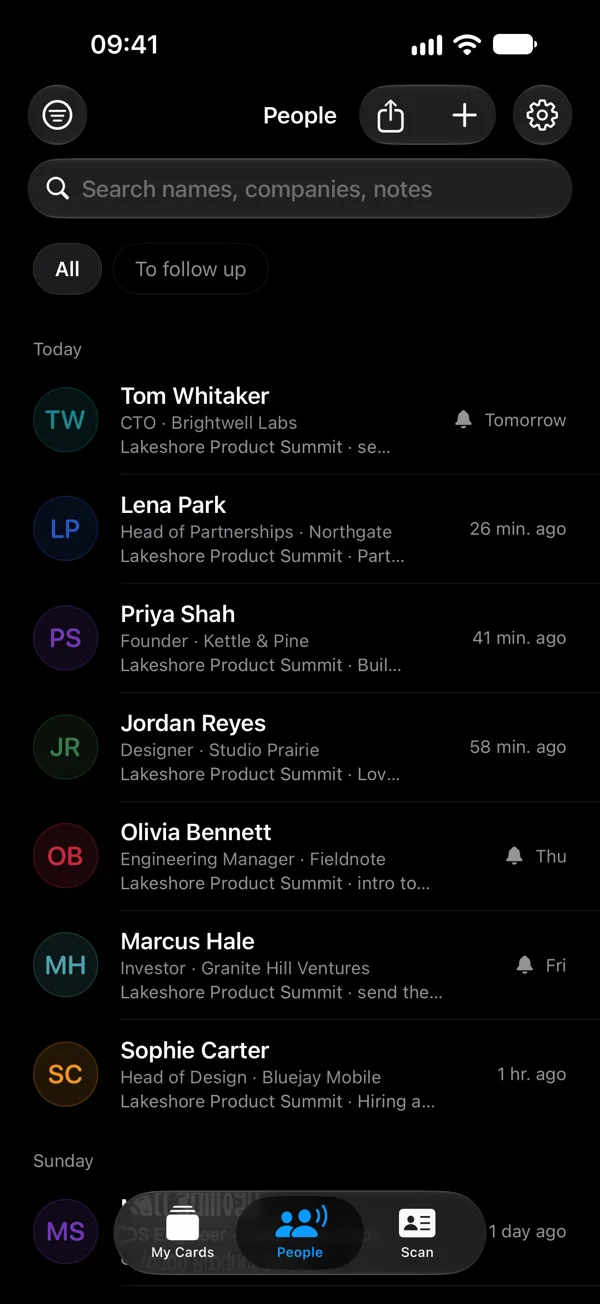
Every card you open is kept in People, with photo, title and company, and works offline. Say what you talked about and your iPhone writes it down. Set a reminder to follow up, ask Siri who you met at an event, and take the list with you as a spreadsheet or contacts.
- Notes, typed or by voice
- Remind me to follow up
- Ask Siri who you met
- Find anyone from Spotlight
- Where you met, per event
- Export to CSV or vCard
03 Follow up
Walk in rememberingwho they are and what you promised
15 minutes before a calendar meeting with someone in People, your iPhone tells you who they are, where you met and what you wrote. With Apple Intelligence, a reminder says what you promised. Not “Follow up”. “Send the API docs”. Read from your note, on your iPhone. New in version 1.6.
- 15 minutes before the meeting
- Who, where you met, your note
- Reminders that say what you promised
- The morning after: who is due, and why
- The reason under their name in People
- Calendar and notes stay on your iPhone
04 Share
Your QR, a second awayeven with the phone locked
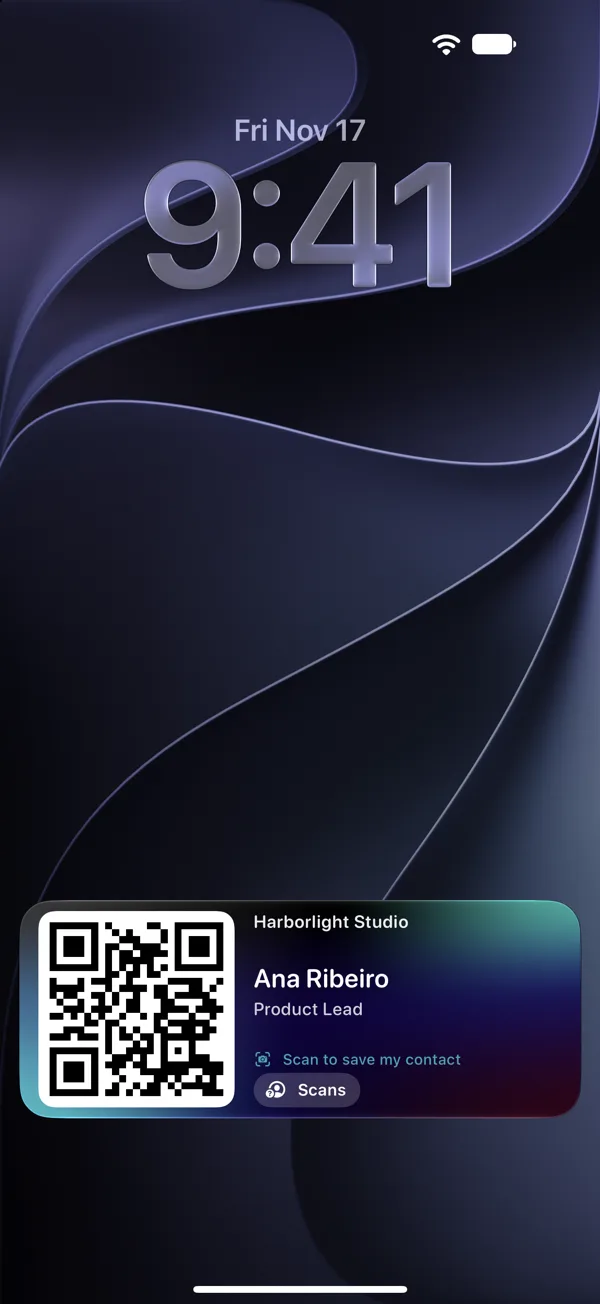
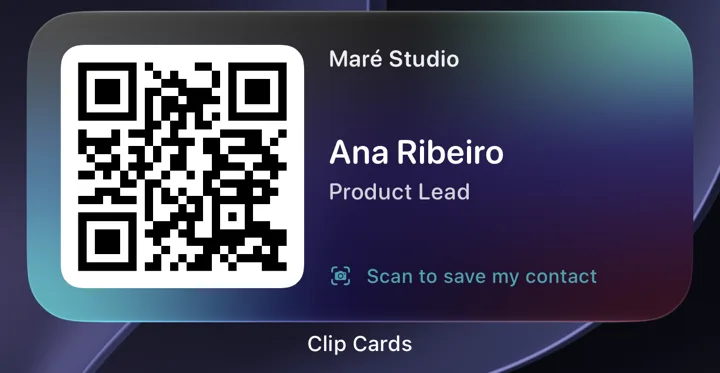
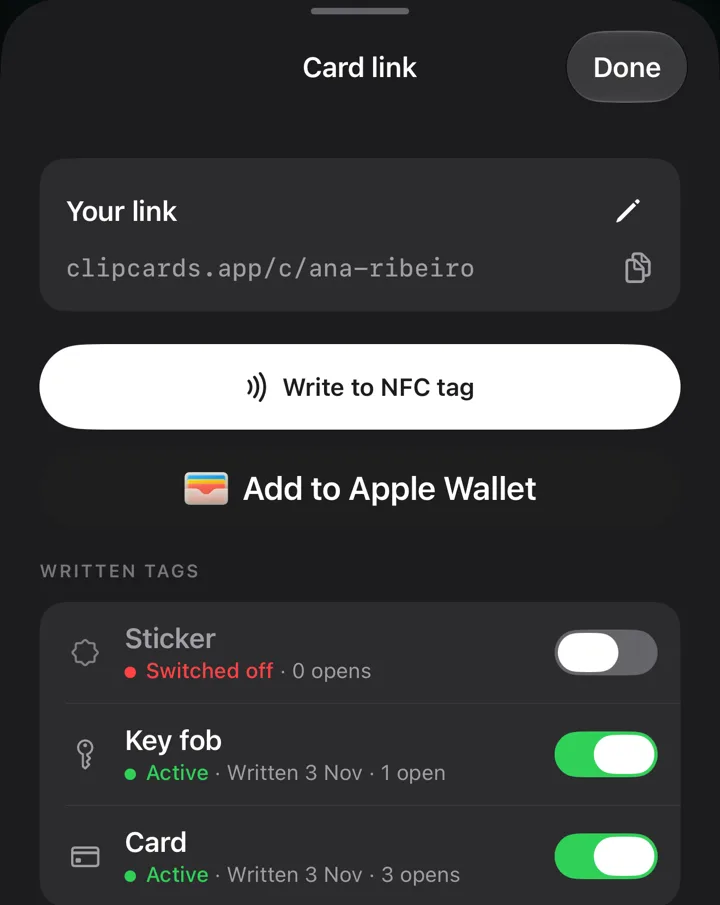
No card at hand? Your QR is a gesture away: on the Lock Screen and in the Dynamic Island during an event, in a widget, in Apple Wallet, on your Apple Watch, or from Siri. Put it in your email signature and behind you on video calls. And any sticker or tag becomes a Clip Card, with a link of its own: lose it, switch it off in the app and write a new one, and your card keeps working.
- Event mode, up to 8 hours
- Home and Lock Screen widgets
- Apple Wallet pass that updates itself
- Apple Watch, with a complication
- Siri, Spotlight, Action button, Control Center
- Email signature, call background, wallpaper, print
- Your own link: clipcards.app/c/your-name
- A link per NFC tag: switch off a lost one, write a new one
05 Scan
Paper cards tooread on your iPhone
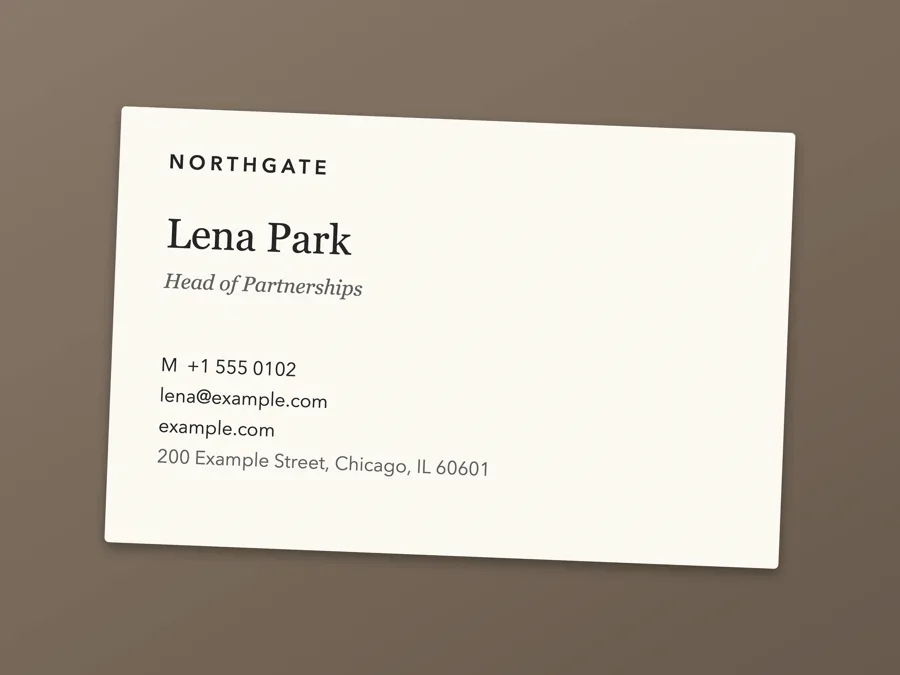
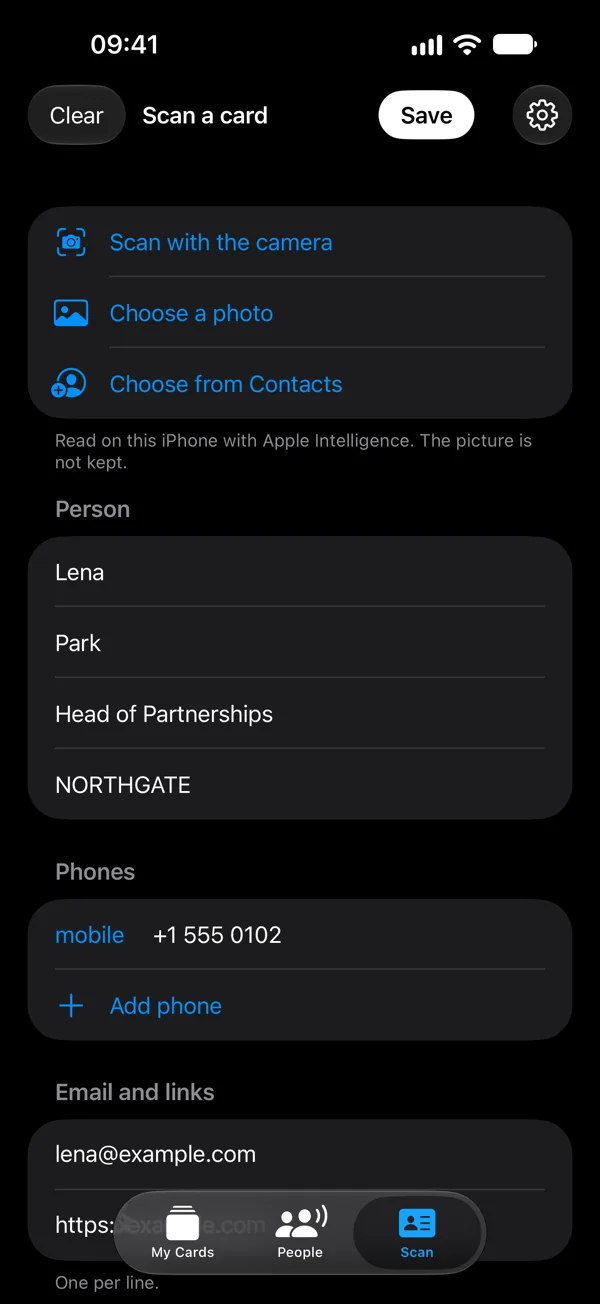
Got a paper card instead? Open the Scan tab and point the camera at it, or pick a photo. With Apple Intelligence, the name, company and title are picked out for you. Phones, emails and links come straight from the printed text. Conference badges too: their QR codes, vCards and LinkedIn links. Check, then save.
- Its own tab, the camera opens at once
- Apple Intelligence where available
- Badge QR codes and LinkedIn
- The picture is not kept
06 Stats
See what workedwithout tracking anyone
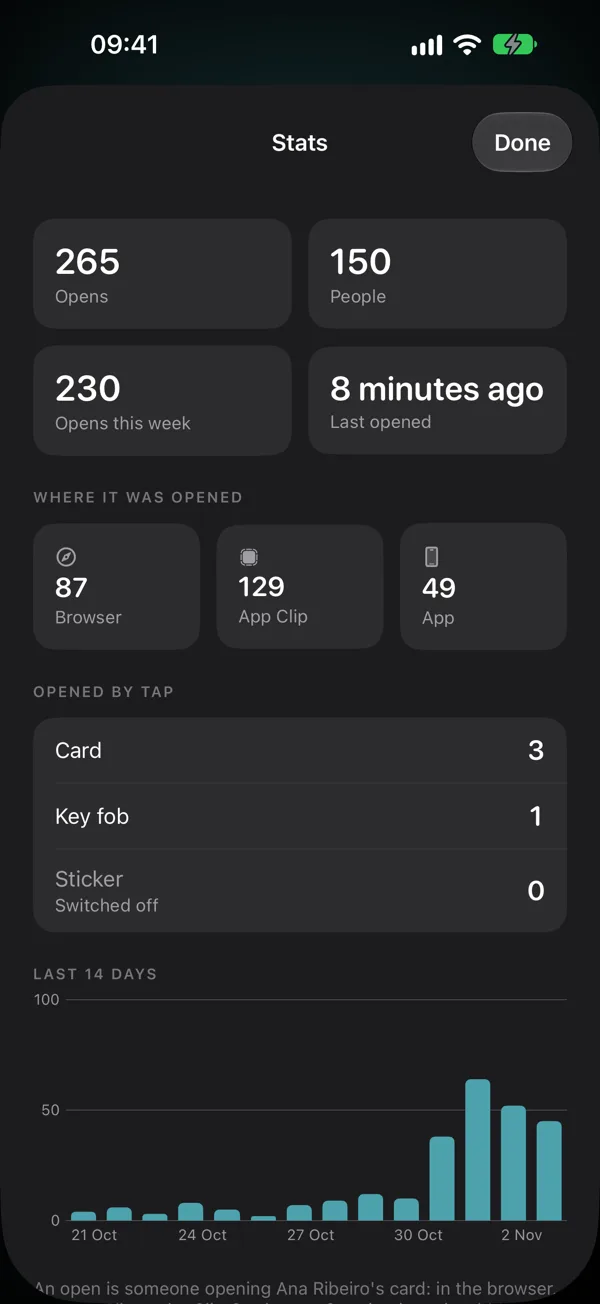
How often your card was opened, by how many people, and where: a browser, the App Clip or the app, and which card, sticker or tag they tapped. No cookies. Link previews in chats and your own opens in the app don't count.
- Opens and people
- Browser, App Clip or app
- Opens per card, sticker or tag
- The last 14 days, no cookies
07 Start
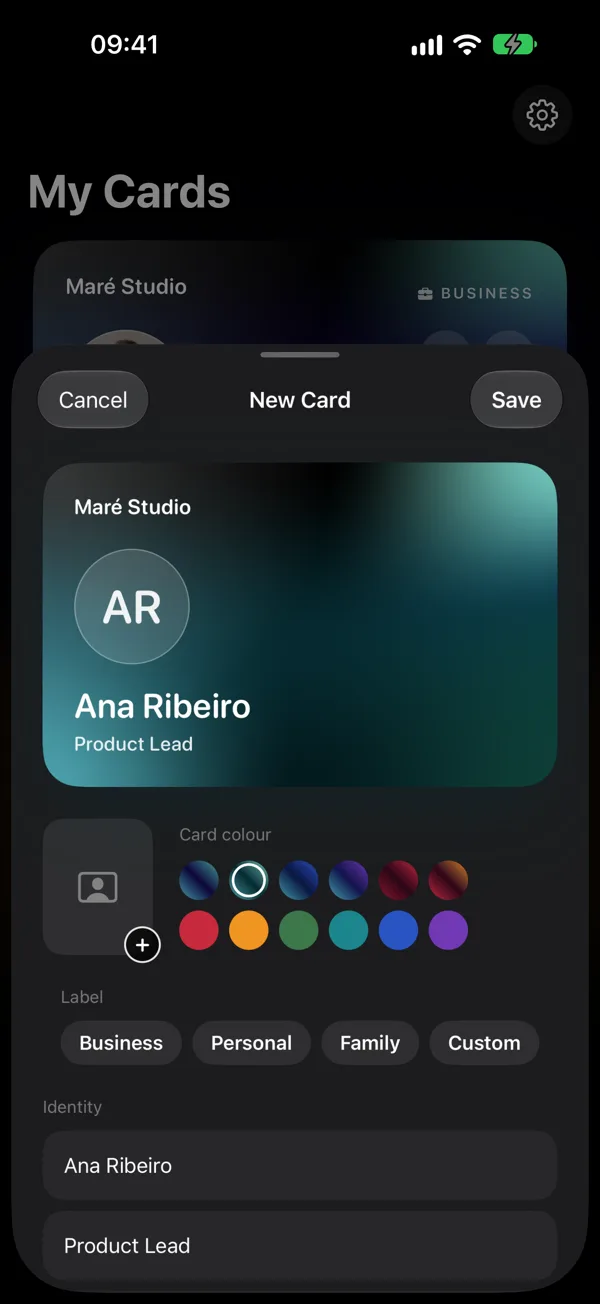
Your card in a minutefrom your CV or LinkedIn PDF
Pick your CV or the PDF LinkedIn makes of your profile. Your name, title, company, email, phone, links and a short bio fill in. The PDF is read on your iPhone and never uploaded. Check it, pick a colour, save. Or start from a contact, or from scratch.
- Any CV as a PDF, or your LinkedIn PDF
- Read on your iPhone, never uploaded
- You check every field before saving
- From a contact, or from scratch
No ads
No ad trackers
No cookies
- People who read your card
- Need no account and install nothing.
- People, notes and reminders
- Never reach our servers. From version 1.5 they also sync through your own iCloud, so a new iPhone keeps them.
- Your calendar
- Is read on the iPhone, to say where you met someone and remind you before you meet again. It never reaches us.
- Paper cards and voice notes
- Are read on the iPhone. The picture and the recording are not kept.
- A CV you make your card from
- Is read on the iPhone and never uploaded.
- Your cards
- Live in the EU. Delete your account and every card from the app. Privacy policy
Before you aska few things people want to know
Does the other person need the app?
No. On iOS 26 your card opens in an App Clip, a small part of the app that needs no install. Older iPhones, Android phones and computers open the same card in the browser, with a button that saves your contact.
Is Clip Cards free? What's the catch?
The app is free, with no subscription and no paid plan. The catch: you need an iPhone with iOS 26 to make and share your card. People who read it can use any phone.
Can it remind me who someone is before a meeting?
Yes, from version 1.6. Turn on the calendar in Settings, Where you met. 15 minutes before a calendar meeting with someone in People, your iPhone tells you who they are, where you met and what your note says; tap it to open them. People are matched by email, or by a full name only one person in People has. The calendar is read on your iPhone and never reaches us.
Does a reminder say what I promised?
With Apple Intelligence, yes, from version 1.6. The app reads your note on your iPhone and keeps one short line of what you promised: the reminder says “Send the API docs”, not only “Follow up”. The morning after lists who is due that day and why, and People shows the line under their name. Without Apple Intelligence, or when the note holds no promise, you see the note's first line.
Does it work with Android?
Yes, for the people you meet. Android phones with NFC open your card in the browser when they tap it, and any phone can scan your QR. Saving your contact takes one button. The app for making your card is iPhone only.
Is Clip Cards in Spanish or Portuguese?
Yes, from version 1.6. The app is in English, Spanish and Brazilian Portuguese and follows your iPhone's language. Your card opens in the reader's language too, English, Spanish or Portuguese, in the App Clip and in the browser. What you wrote on it stays as you wrote it.
Do I need a Clip Cards card?
No. Share your QR from Apple Wallet, your Apple Watch, the Lock Screen, a widget or Siri, send your link, or write it to any NFC sticker or tag from the app. How the NFC card works
Can I add my card to Apple Wallet?
Yes. In the app, Card link, then Add to Apple Wallet, puts your QR in Wallet. Edit the card and the pass updates itself. It is also on the Lock Screen in event mode, in a widget, on your Apple Watch, and Siri shows it when you ask. More about the Wallet pass
How is it different from Popl, Blinq or HiHello?
Most digital business card apps are built for sales teams, with CRM sync and team plans. Clip Cards is built for the person holding the card, on iPhone: an App Clip instead of a web page, your QR on the Lock Screen, Siri, and notes and paper card scans that never reach our servers. It has no CRM sync or team admin yet. See how they compare
Does scanning paper cards need Apple Intelligence?
No. With Apple Intelligence the name, company and title are picked out for you. Without it, the iPhone fills the same fields by itself. Either way the card is read on your iPhone and the picture is not kept. More about the scanner
I lost my card. Now what?
Open the card in the app, then Card link, and switch off its tag, or touch and hold it and pick Replace to switch it off and write a new one in one go. Every card, sticker or tag you write in the app gets its own link for its chip, so only that one stops working: whoever taps it sees "This card was switched off", and your QR, links and other tags keep working. A QR printed on a card opens your card's main link, which stays on; to retire that too, make a new card in the app and delete the old one.
Can my link have my name in it?
Yes. In Card link, set your own link: clipcards.app/c/your-name. Change it later and the old one keeps opening your card; nobody else can take it, even after you delete your account.
How long does it take to make a card?
About a minute. Pick your CV or your LinkedIn PDF and the app fills in your name, title, company, contacts, links and a short bio. The PDF is read on your iPhone and never uploaded. You can also start from a contact, or from scratch.
Can I take my contacts with me?
Yes. People, then Share, gives you a spreadsheet (CSV) or contacts (vCard) of everyone on screen, with where you met and your notes. It works offline.
How do I get in?
Get Clip Cards on the App Store: it is free and needs an iPhone with iOS 26. Continue with Apple and make your card: no invite needed.
Get Clip Cards
Free on the App Store, for iPhone with iOS 26. Sign in with Apple and make your card.